Your BiteBot dashboard gives you everything you need to know about how your ads are performing — but if you’re not sure what you’re looking at, the numbers can feel overwhelming. This guide breaks it down in plain English so you can quickly see what’s working, what’s not, and what to do about it.
Where to Find Your Data
All your reporting lives inside your BiteBot dashboard. Here’s where to look:
Dashboard (Your Quick Overview)
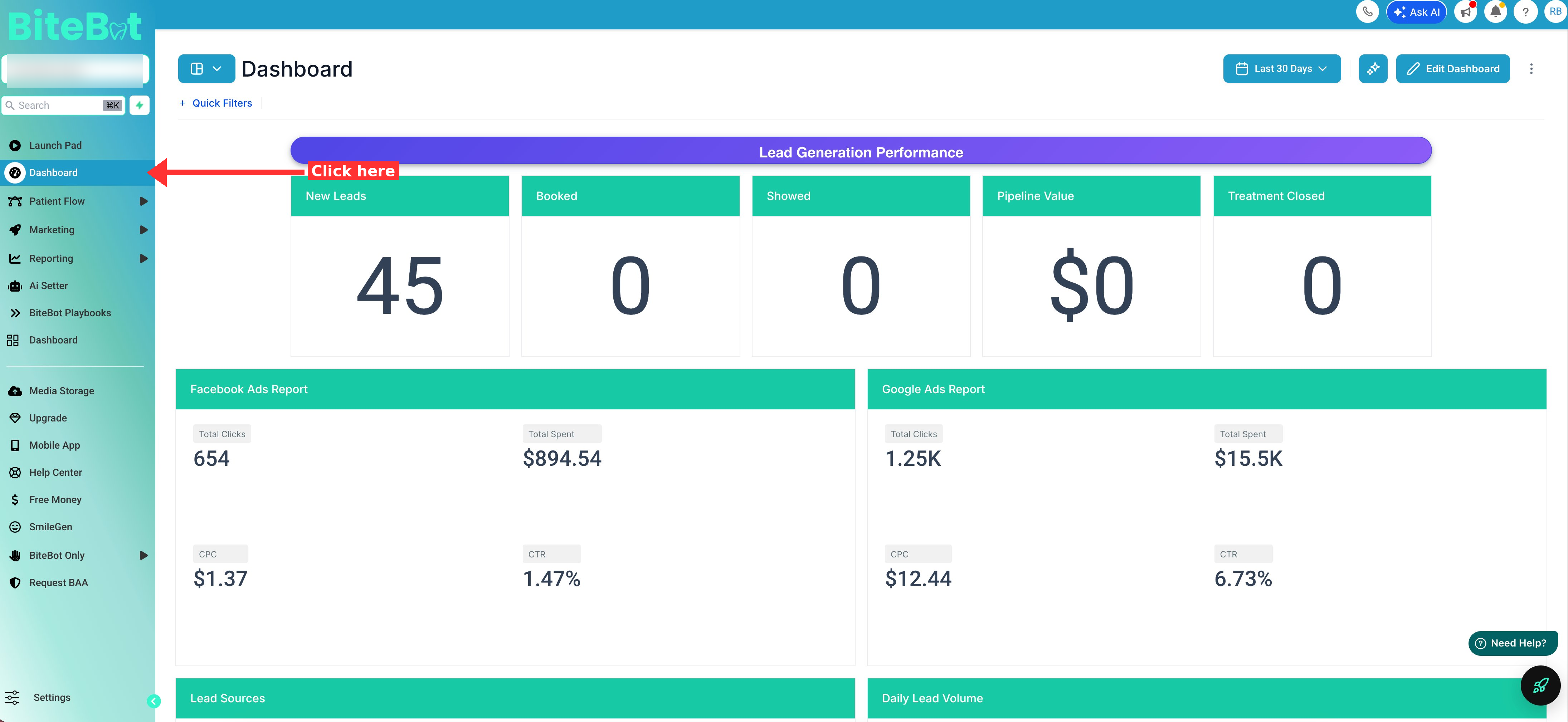
Path: Dashboard (left sidebar)
This is your at-a-glance view of everything. At the top, you’ll see five key numbers: New Leads (total leads from your ads), Booked (leads who scheduled an appointment), Showed (leads who actually came in), Pipeline Value (estimated dollar value of leads in your pipeline), and Treatment Closed (revenue from closed treatments).
Below that, you’ll see your Facebook Ads summary (total clicks, spend, CPC, CTR), lead sources, daily lead volume trends, and your patient pipeline funnel.
Campaign Performance (Detailed Ad Metrics)
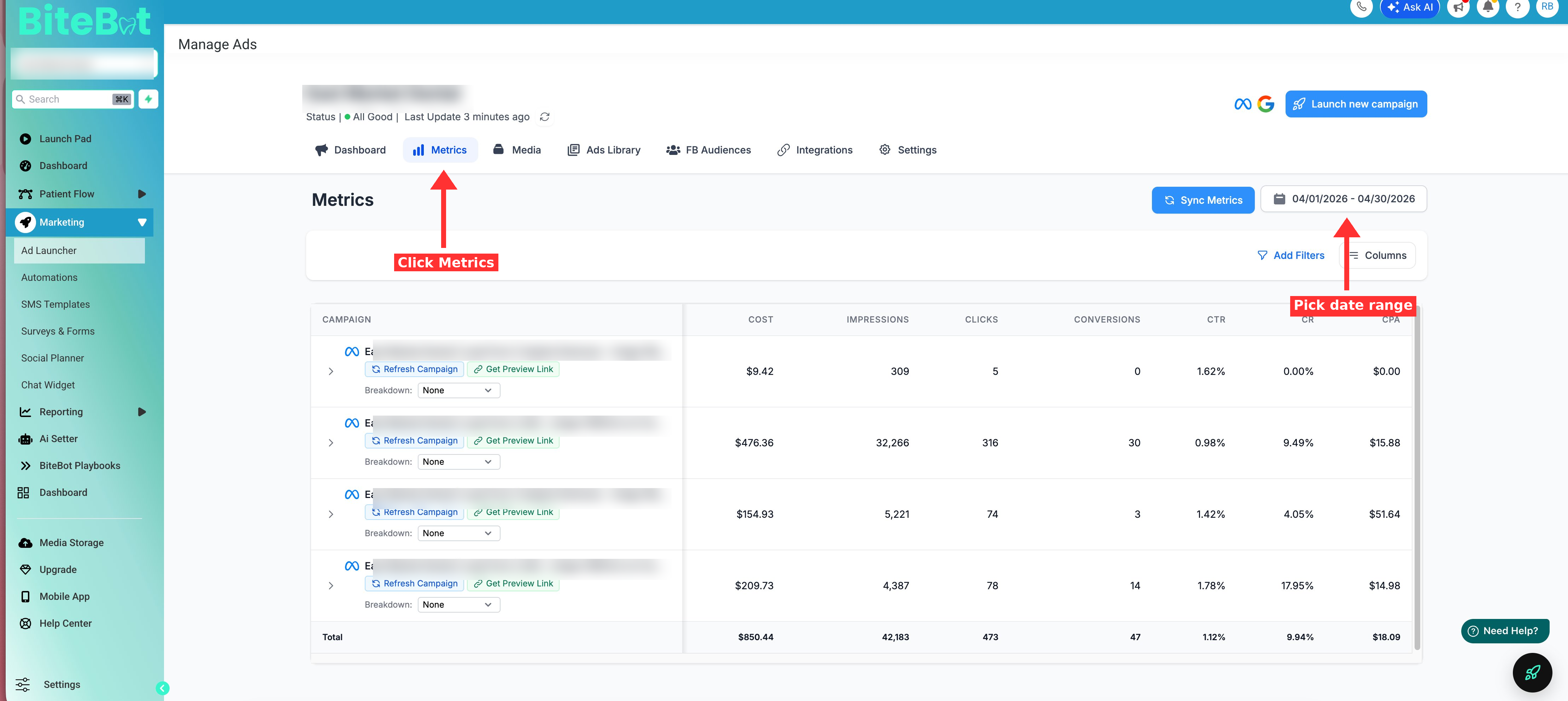
Path: Marketing → Ad Launcher → Metrics
This is where you dig into campaign-level performance. You can see each campaign’s cost, impressions, clicks, conversions, and cost per lead. Use the date selector in the top-right to view different time ranges.
Chats (Lead Follow-Up)
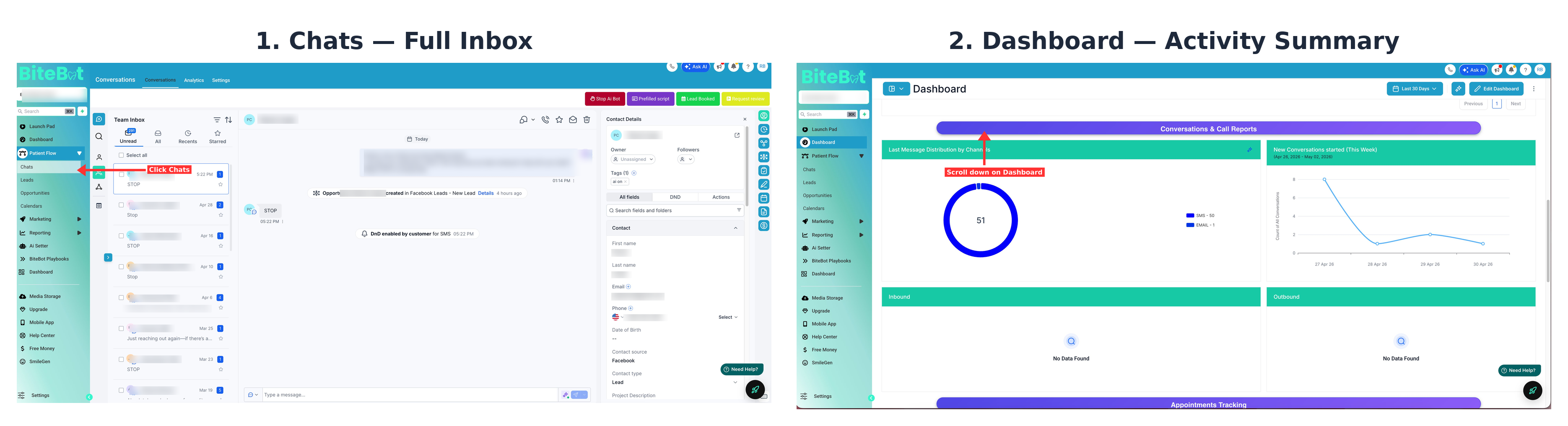
Path: Chats (left sidebar)
This shows all text, email, and call activity with your leads. The dashboard also shows a summary — how many SMS, emails, and calls have gone out, plus inbound vs. outbound activity.
Appointments
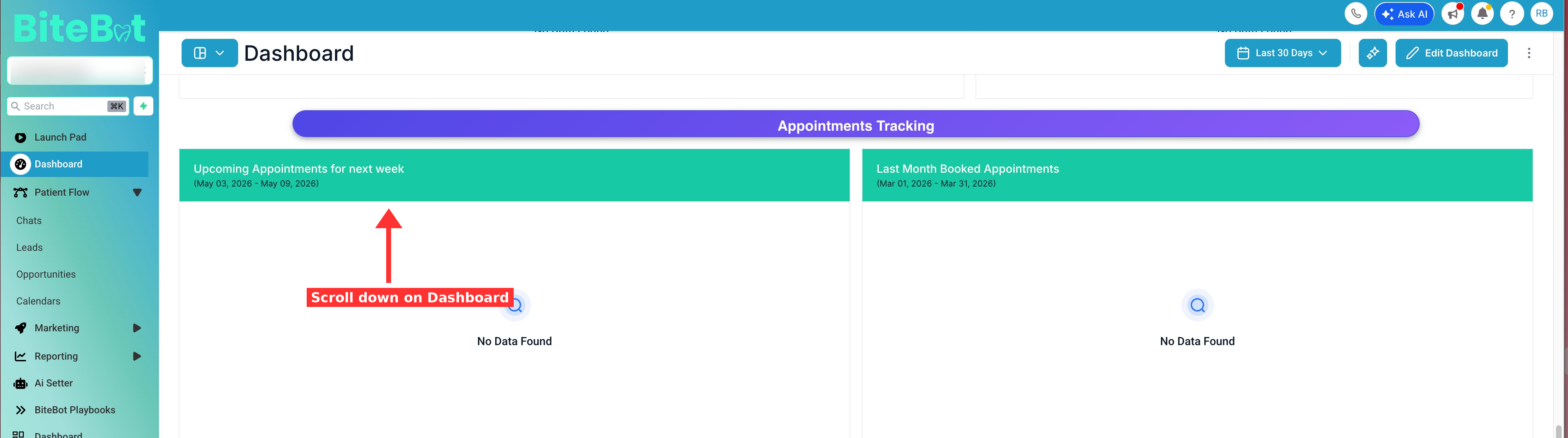
Path: Dashboard (scroll down) → Appointments Tracking
See all booked appointments, including date, time, and which lead they belong to.
Patient Pipeline
Path: Dashboard (scroll down) or Opportunities
Your pipeline funnel shows leads organized by stage — from New Lead all the way through to Treatment Closed. This helps you see where leads are getting stuck.
Keeping Your Data Accurate
Important:
Your BiteBot reports are only as good as the data you put in. To get accurate numbers for booking rate, show rate, and ROI, you need to keep your lead statuses updated in your BiteBot account.
If You Book Appointments in BiteBot
Great — your “Booked” numbers should already be accurate. Just make sure to update leads to “Showed” after they come in for their appointment.
If You Use Another Platform to Book Appointments
If you’re using a separate scheduling system, PMS, or booking directly in your practice software, your BiteBot dashboard won’t automatically know when leads book or show up. To keep your reports accurate:
1. Tag leads as “Booked” when they schedule an appointment (even if it’s outside BiteBot)
2. Tag leads as “Showed” after they actually come in for their visit
This takes just a few seconds per lead, but it makes a huge difference in understanding how well your campaigns are really performing. Without these updates, your booking rate and show rate will look lower than they actually are — and you won’t be able to spot problems early.
How to update a lead’s status:
Go to Conversations → find the lead → update their pipeline stage to “Booked” or “Showed”
What Each Number Actually Means
Here’s a quick glossary of the key terms you’ll see:
Lead & Appointment Metrics
Lead - Someone who filled out your ad form or landing page. They’ve raised their hand and said “I’m interested.”
Booked Appointment - A lead who actually scheduled a consultation or visit on your calendar.
Showed - A lead who booked AND actually showed up to their appointment.
Show Rate - The percentage of booked appointments that showed up. If 10 people book and 7 come in, your show rate is 70%.
Booking Rate - The percentage of leads who book an appointment. If you get 20 leads and 6 book, your booking rate is 30%.
Cost Metrics
Ad Spend - The total amount you’ve spent on ads in a given time period.
Cost Per Lead (CPL) - How much you spent to get one lead. If you spent $300 and got 15 leads, your CPL is $20.
Cost Per Click (CPC) - How much you pay each time someone clicks your ad. Lower is generally better.
CPA (Cost Per Acquisition) - How much you spent to get one conversion (usually a lead or booked appointment, depending on how your campaign is set up).
Engagement Metrics
Impressions - How many times your ad was shown to people.
Clicks - How many times people clicked on your ad.
CTR (Click-Through Rate) - The percentage of people who saw your ad and clicked it. If 1,000 people saw your ad and 20 clicked, your CTR is 2%.
CR (Conversion Rate) - The percentage of clicks that turned into leads. If 100 people clicked and 10 became leads, your CR is 10%.
Pipeline Metrics
Pipeline Value - The estimated dollar value of all leads currently in your pipeline (not yet closed).
Treatment Closed - The actual revenue from treatments that have been completed and paid.
What “Good” Looks Like
Not all campaigns are created equal — a dental implant lead costs more than a cleaning lead, and that’s normal. Here are the benchmarks to measure yourself against:
Cost Per Lead by Service
General Dentistry:
$10 or less is great, up to $25 is acceptable, over $25 for 2+ days is a red flag
Veneers:
$15 or less is great, up to $25 is acceptable, over $25 for 2+ days is a red flag
Dental Implants (single):
$20 or less is great, up to $35 is acceptable, over $35 for 2+ days is a red flag
All-on-X / Full Arch:
$20 or less is great, up to $35 is acceptable, over $35 for 2+ days is a red flag
Invisalign / Clear Aligners:
$15 or less is great, up to $30 is acceptable, over $30 for 2+ days is a red flag
Emergency Dentistry:
$10 or less is great, up to $20 is acceptable, over $20 for 2+ days is a red flag
Overdentures:
$20 or less is great, up to $35 is acceptable, over $35 for 2+ days is a red flag
Other Benchmarks
Booking Rate:
Target 30% of leads book; below 20% is a red flag
Show Rate:
Target 70% or higher; below 60% is a red flag
CTR (Click-Through Rate):
Target 1% or higher; below 0.5% is a red flag
CPC (Cost Per Click): Target under $2; over $5 is a red flag
Monthly ROI Example
At a typical $30/day budget ($900/month), you should expect: 25–30 new leads per month, 8–10 booked appointments, and $3,000–$5,000+ in treatment value from those appointments.
What to Do With Your Data
A quick 5-minute look at your dashboard each morning can help you catch problems early. Here’s what to do based on what you see:
1. If your cost per lead is too high for 2+ days...
Check if your ad creative is getting stale or if a competitor launched a similar offer. Reach out to your BiteBot team to test a new angle or refresh the creative. Don’t panic after one expensive day — look at 3–7 day trends.
2. If you’re getting leads but nobody’s booking...
Check how fast leads are being contacted. Look at your Conversations section — are follow-up texts going out? If leads are going 6+ hours without a response, speed to lead is the issue. BiteBot AI should be handling this, but confirm it’s working.
3. If your booking rate drops below 20%...
Check if the leads are qualified, in your service area, and have real contact info. Check your Lead Sources to see where they’re coming from. This may be a lead quality issue — talk to your BiteBot team about tightening targeting or adding a qualification survey.
4. If your show rate drops below 70%...
Check if appointment reminders are being sent. Look at your Outbound messages in Conversations. Add a same-day reminder text, or have your front desk call to confirm 24 hours before.
5. If you’re spending way under your daily budget...
Go to Marketing → Metrics and look for a green toggle next to your campaign. Is it active? If your ad was rejected, request review in Facebook Ads Manager and write: “This ad complies with Facebook’s advertising policies for healthcare services.”
Quick Daily Checklist (5 Minutes)
Every morning, check your Dashboard and ask:
1. New Leads — Did I get new leads yesterday?
2. Ad Spend — Am I spending close to my daily budget?
3. Booked — Are leads turning into appointments?
4. Showed — Are booked appointments actually showing up?
5. Pipeline — Where are my leads getting stuck in the funnel?
If something looks off, reach out to your BiteBot team before it becomes a bigger problem.
Remember: If you book appointments outside of BiteBot, take a few seconds to update each lead’s status to “Booked” and “Showed” so your reports stay accurate!
Need Help?
If you’re not sure what you’re looking at or something doesn’t seem right, submit a support ticket and we’ll walk you through it:
Submit a Support Ticket: https://bitebot.freshdesk.com/support/tickets/new
Was this article helpful?
That’s Great!
Thank you for your feedback
Sorry! We couldn't be helpful
Thank you for your feedback
Feedback sent
We appreciate your effort and will try to fix the article