Follow these steps using the screenshots provided to easily locate and copy your Location ID from the BiteBot dashboard:
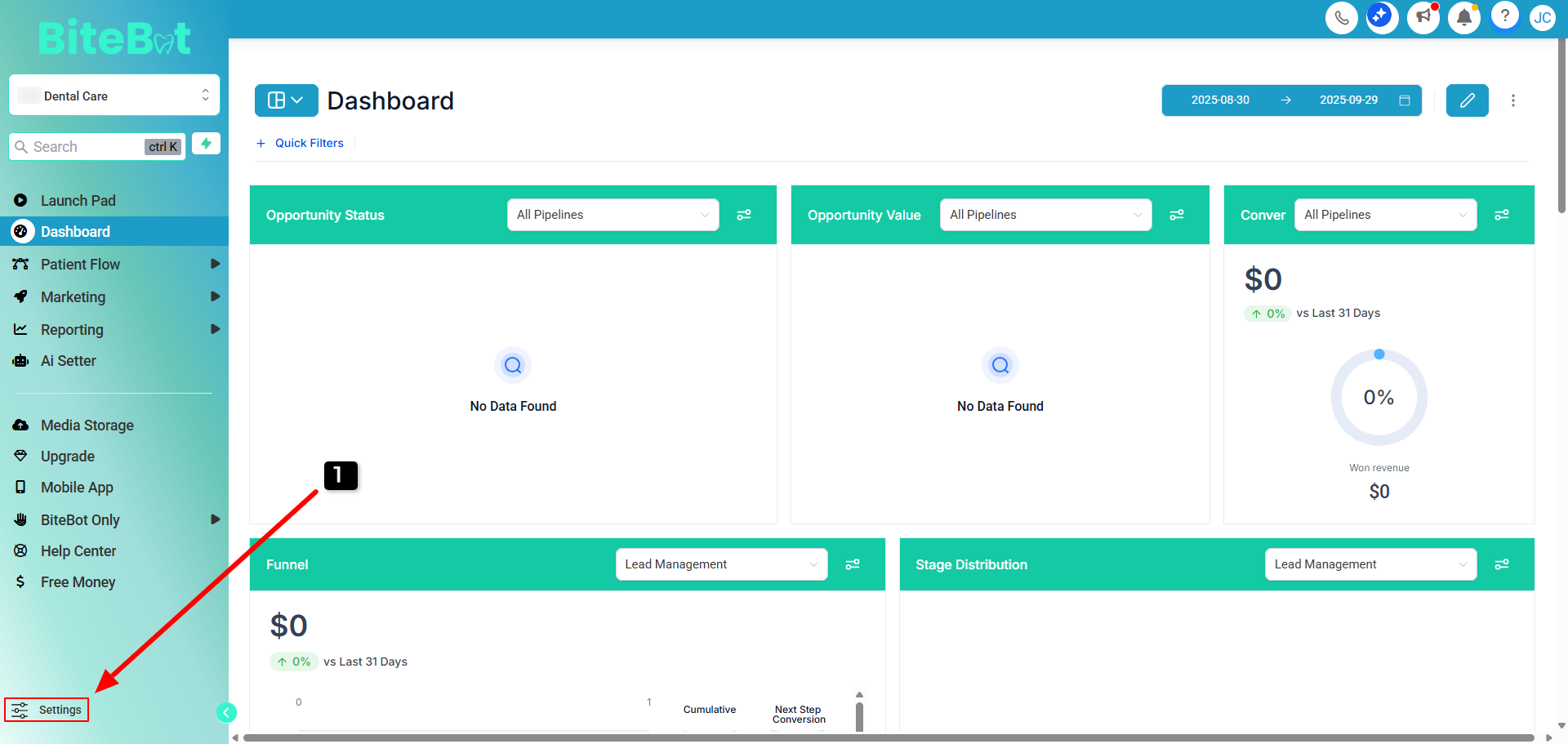
Step 1: Go to Settings
On your BiteBot dashboard, look at the sidebar on the left.
Scroll down and click on Settings near the bottom left corner of the menu.
Step 2: Access Company Info
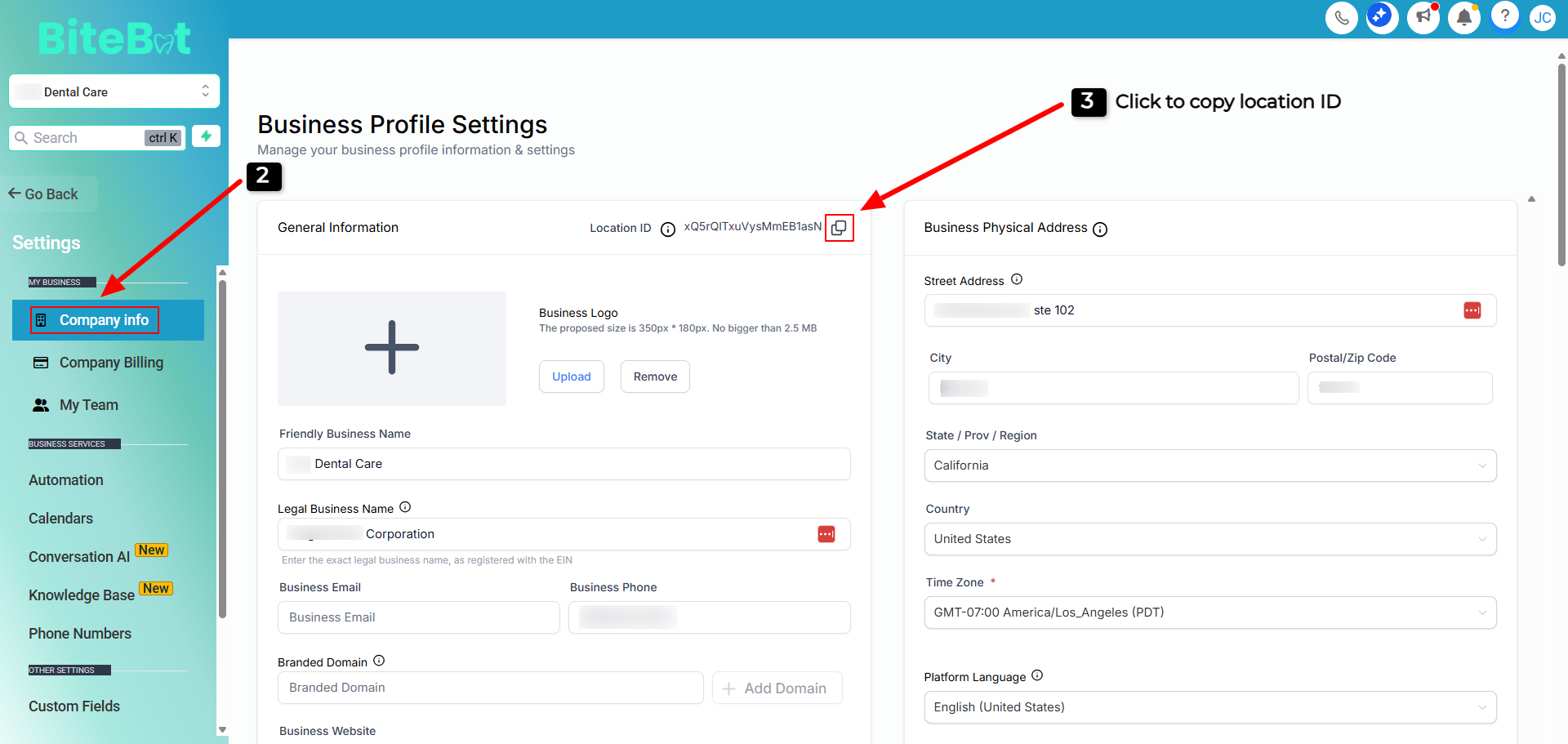
In the Settings menu, click on Company info under the "MY BUSINESS" section. This will bring up your Business Profile Settings.
Step 3: Locate and Copy Location ID
In the Business Profile Settings screen, find the "Location ID" field near the top center of the page.
Click the copy icon next to the Location ID to copy it to your clipboard.
That's it!
You now have the Location ID copied and ready to use.
Was this article helpful?
That’s Great!
Thank you for your feedback
Sorry! We couldn't be helpful
Thank you for your feedback
Feedback sent
We appreciate your effort and will try to fix the article