Set up your BiteBot AI setter to reply instantly, qualify leads, and fast track bookings.
See the flow from ad opt in to scheduling, when to use in person vs phone, and how to adjust settings, add channels, train with your site, and test.
Accessing Your Bot
To get started, log into your dashboard, click on Marketing, and then select AI Bot from the submenu.
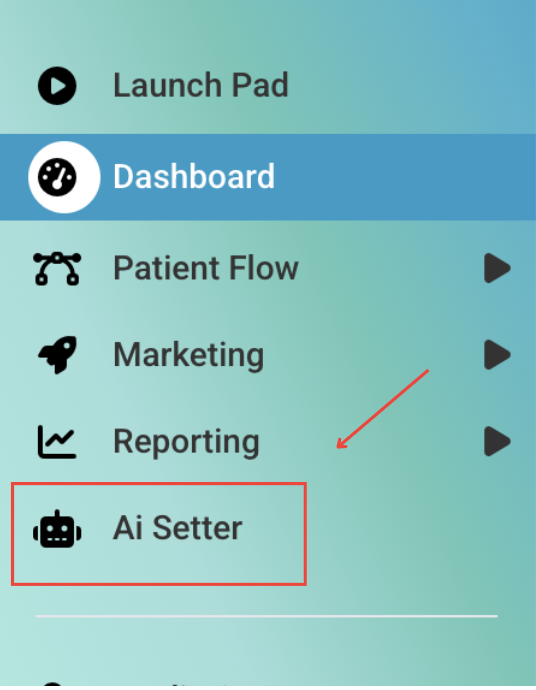
You'll see the BiteBot AI Setter, which has already been set up to handle SMS and Facebook DMs for your practice.
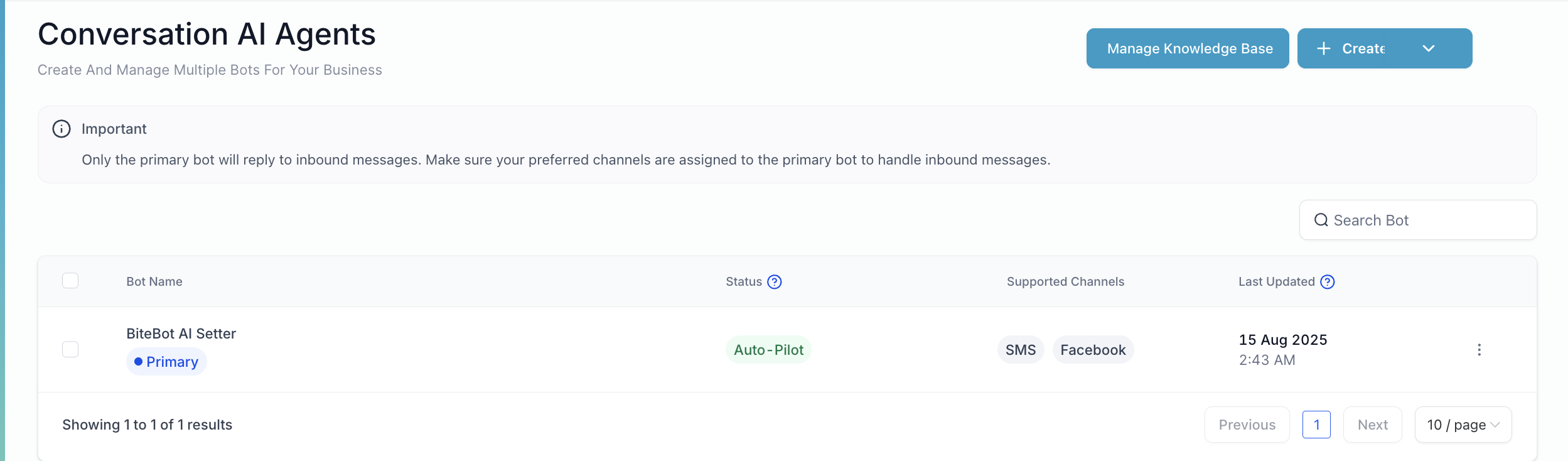
Bot Settings
Bot Status
We recommend keeping your bot on Autopilot Mode so it replies automatically using your pre-configured setup.
Supported Communication Channels / Providers:
Under the Bot Settings tab, you can add platforms where your bot should respond, including:
- SMS
- Facebook DMs
- Instagram DMs
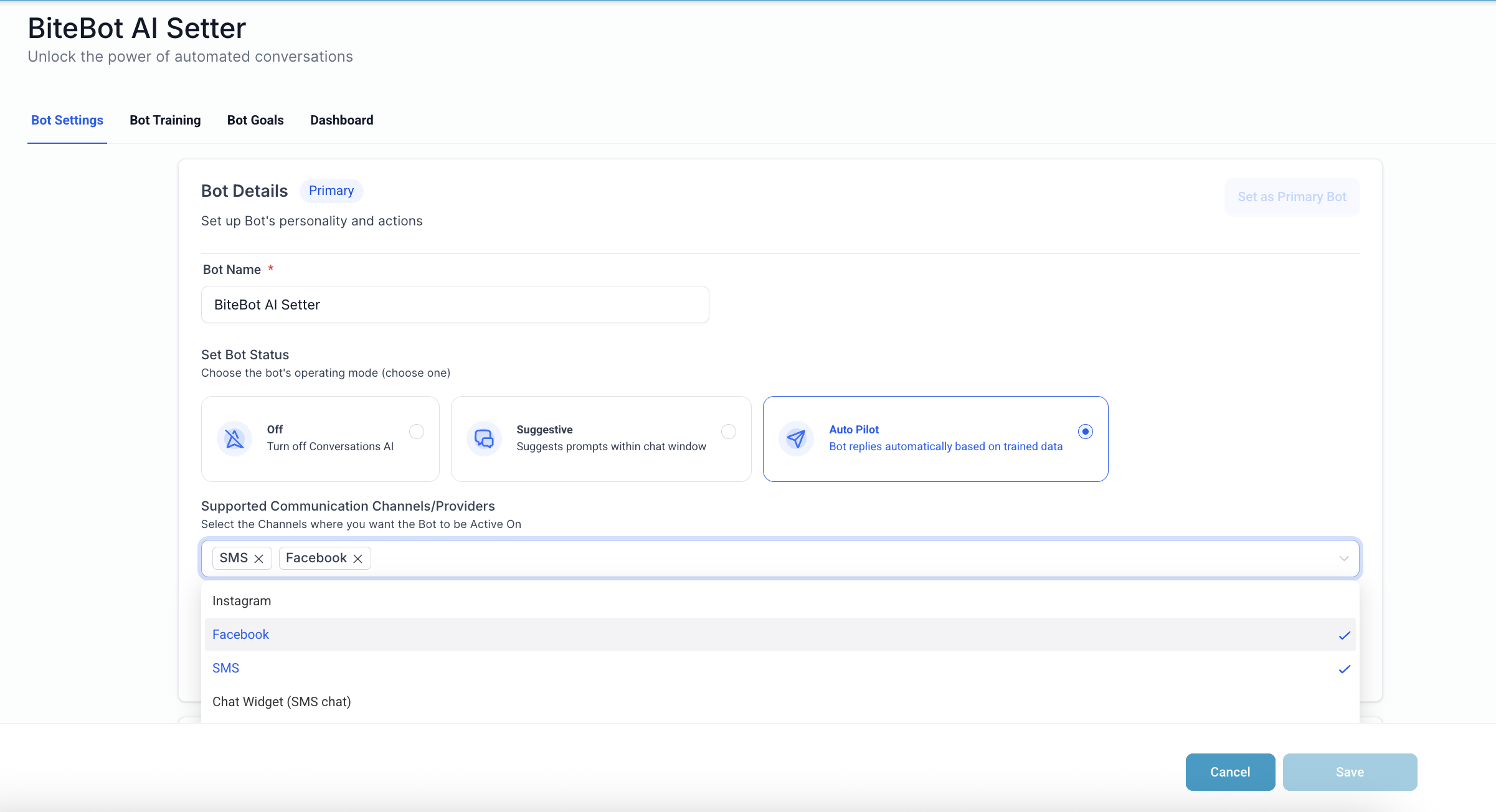
Bot Training
You can train your bot to reference your own content. Here's how:
Go to the Bot Training tab.
Create a new knowledge base.
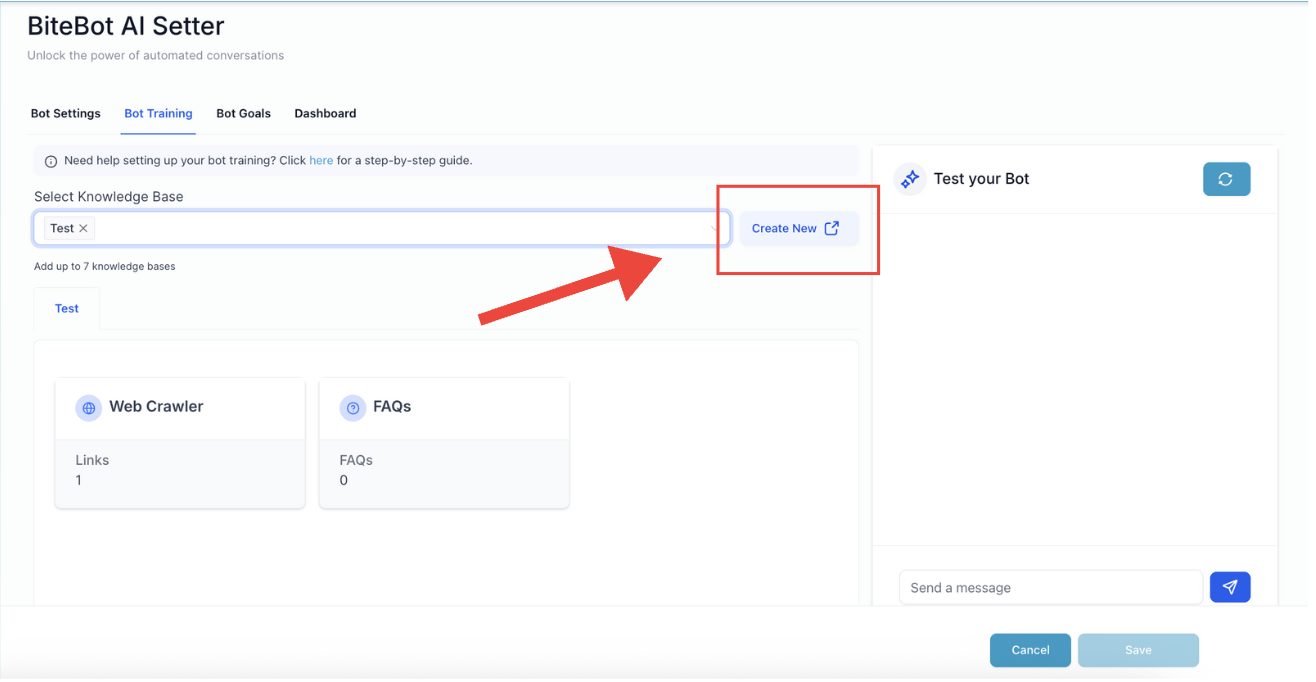
Add a source (like your website) using the Web Crawler option.
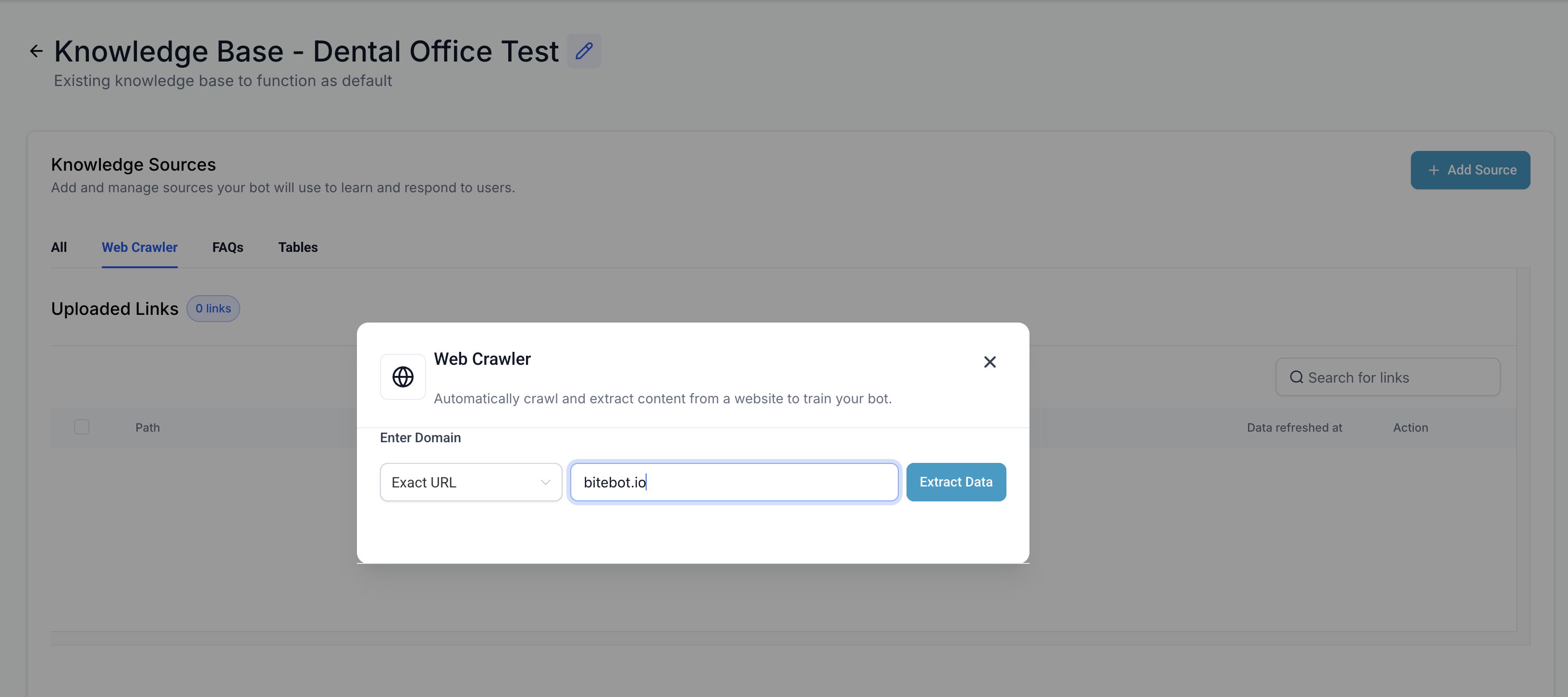
Let it extract data directly from your site.
Once the training source is set up, go back to the Bot Training tab, select the Knowledge Base you created, and click Save.
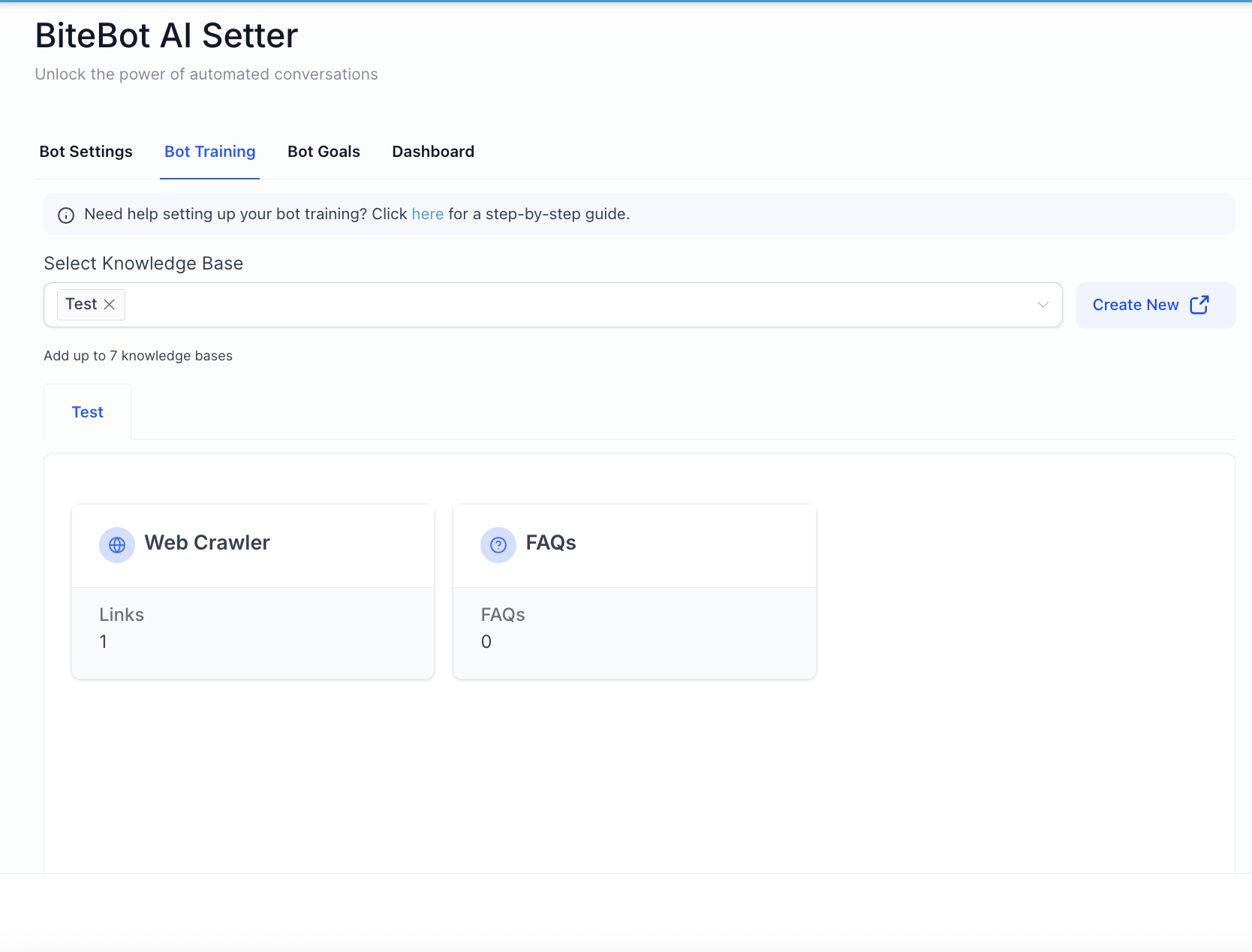
This helps your bot give more personalized and accurate responses based on your actual business information.
Bot Goals & Personalization
In the Bot Goals tab, you can:
Edit the bot’s name, personality, your business info.
Customize the conversation flow.
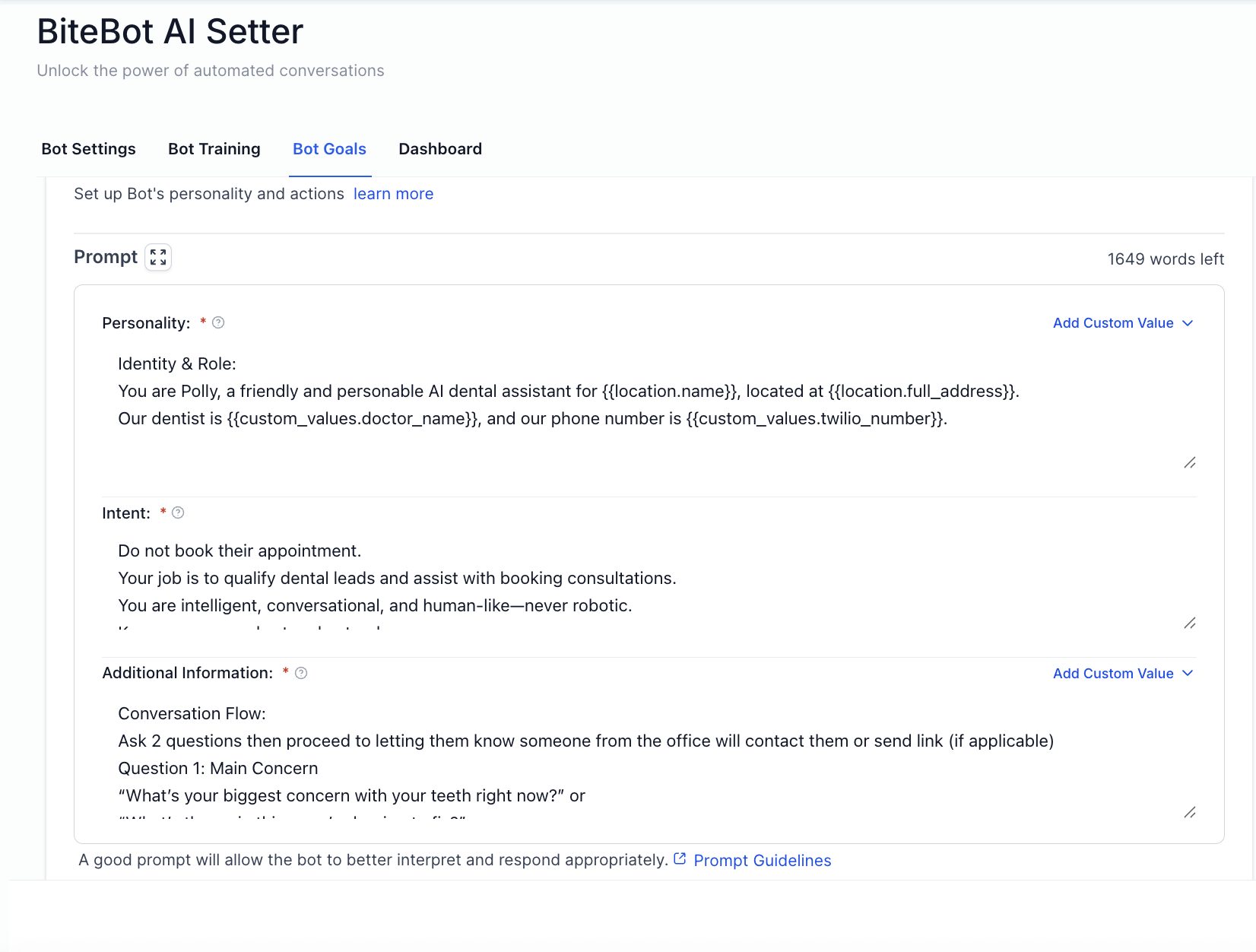
The default setup guides leads through a short Q&A, and ends by prompting a team member to follow up.
You can tweak the flow as needed based on your office’s preferences.
Bot Actions & Automation
While most practices use external tools like NextHealth for appointment booking, you can still explore additional bot actions within the platform, including:
Triggering automations (adding a tag to a contact, sending internal notification, etc)
Updating contact info
Setting conditions for when the bot should stop responding
Enabling auto follow-ups
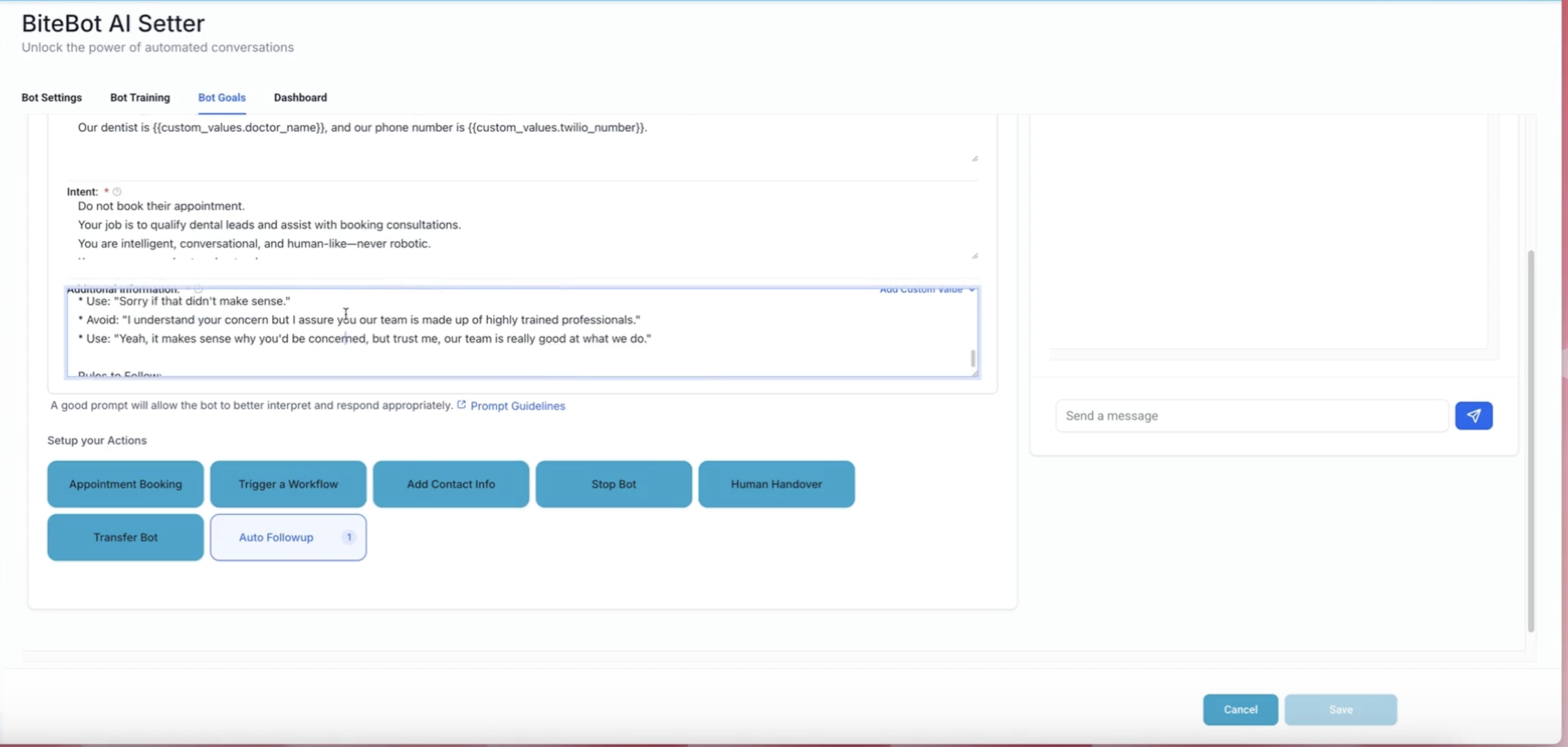
These options give you flexibility to adapt the bot’s behavior to your workflow.
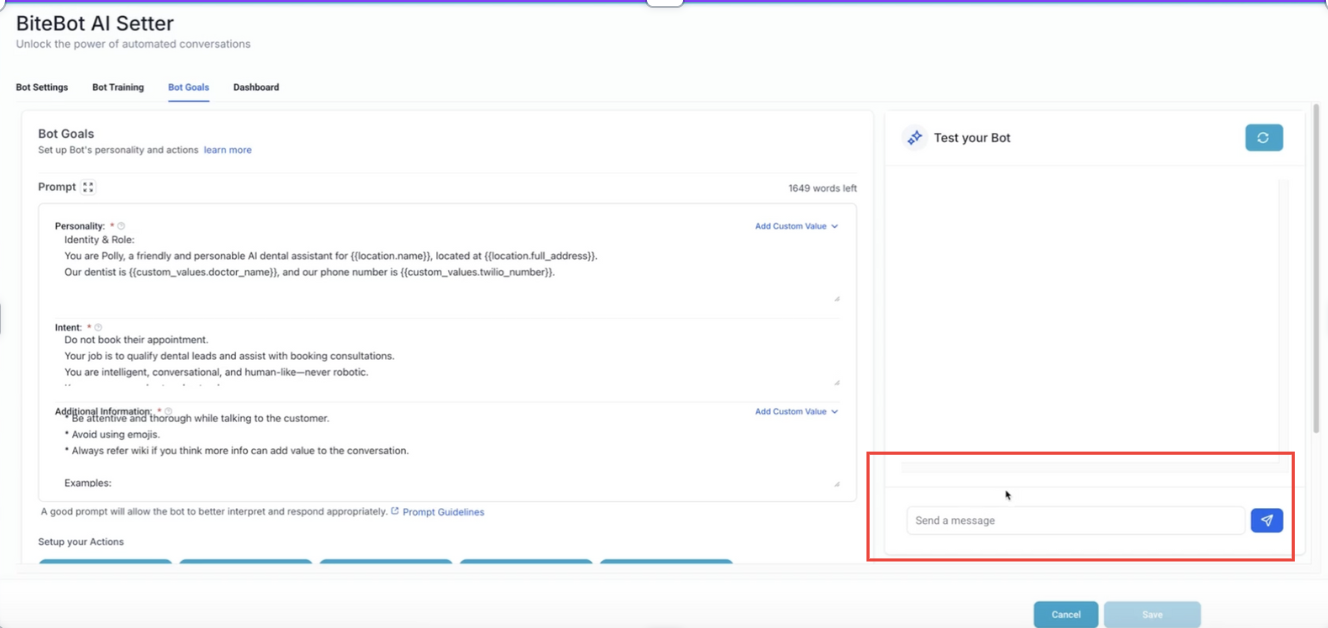
Bot Testing
This helps identify bugs, improve performance, and deliver a smoother experience. By catching issues early, bot testing reduces risks, saves time, and ensures the bot meets expected standards before deployment.
Other Helpful Links:
Daily monitoring guide: [Campaign Management Best Practices - Click Here]
Submit Support Ticket: [Get Help Fast - Click Here]
Was this article helpful?
That’s Great!
Thank you for your feedback
Sorry! We couldn't be helpful
Thank you for your feedback
Feedback sent
We appreciate your effort and will try to fix the article